
📖 File Management
Why File Naming Matters
File names and directory paths are what make your web pages reachable. Poor file naming can lead to broken links, confusing URLs, and grading issues. Clean, consistent file names make your site easier to navigate, maintain, and share.
File Name Conventions
A file name becomes part of the URL, so spaces and special characters must be avoided. For example, the file name Contact Us.html will be encoded in the URL as:
https://mywebtraining.net/MySite/Contact%20Us.htmlThis is harder to type and understand — especially on mobile devices. It’s better to name your file like this:
contact-us.html- No spaces
- Use hyphens (
-) or underscores (_), but hyphens are preferred for readability and SEO. - Use lowercase only
- Web servers are often case-sensitive. Using all lowercase prevents broken links.
- Use a standard file extension
- End file names with valid 3- or 4-letter extensions like
.html,.jpg,.png, or.css. - Avoid special characters
- Stick to letters, numbers, hyphens, and periods. Avoid symbols like
&,%,!, or spaces.
For more about URL encoding, see the W3Schools URL Encoding Reference.
File Directories and the Root Folder
Every website has a root directory — the top-level folder where your main page (usually index.html) lives. When someone visits your domain (e.g., mywebtraining.net), the server looks in this root directory for a default file to display.
Each subdirectory should also include an index.html file so users don’t have to type long or specific URLs. This also allows for clean navigation and better user experience.
Organizing by Class or Topic
If you're building a multi-class site, use directories named after each course:
index.html— your site home page/javascript— files for your JavaScript class/php— files for your PHP class
Each folder can have its own nav menu and subfolders like css, images, and scripts to mirror your site structure.
Navigation and Discoverability
Navigation links are essential. Without them, even well-named pages may never be found. Your nav menu is the user’s map through your site. If a file isn’t linked from your nav menu, it may as well not exist — even to your instructor.
- username.github.io/repo
- This is your GitHub Pages domain URL.
- repo name
- This is your site’s root directory.
- subdirectories
- Use these to organize content and assets.
- file names
- Use consistent naming conventions for all site files.
Directory Structure and Resources
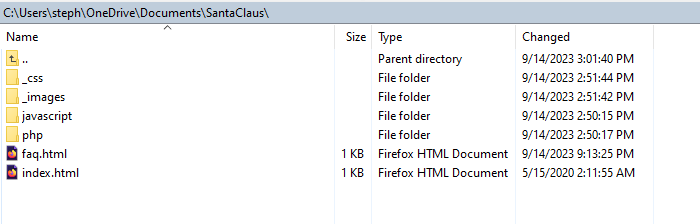
Your local project folders should match the structure of your deployed site. Here’s an example layout:
Resource Directories
Directories that begin with an underscore (like _css or _images) are often used for site resources. These folders store stylesheets, images, and other supporting files.
However, GitHub Pages sometimes ignores these folders. For example, _css may not load in your deployed site. To avoid this problem, name your folders without underscores:
css— stylesheetsimages— photos and iconsscripts— JavaScript files
Site Nav Links
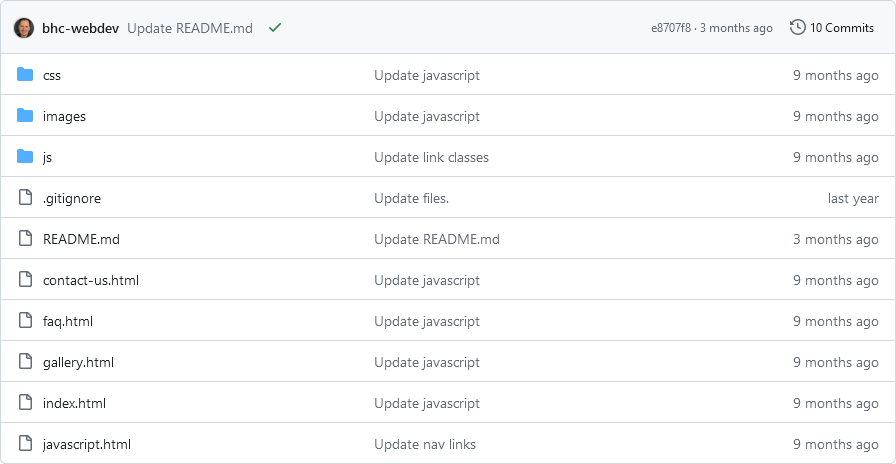
If you name your homepage index.html and place it in your root folder, then your URL can be simplified to just the directory path:
https://bhc-webdev.github.io/github-pages/Click the link above and you’ll land on the homepage. From there, nav links will help you explore the rest of the site. A single link can now give access to every file — as long as you build your menus correctly.
Additional Resources
Last updated: June 18, 2025 at 9:00 PM